
Docs

UCAN-Mini Docs

Read product documentation, quick starts, and protocol references online.

Overview

USB TO DUAL CAN / CAN FD INTERFACE
UCAN-Mini Product Overview V2.5
Dual-Channel CAN FD Interface
UCAN-Mini covers Linux SocketCAN, Python automation scripts, LM TLV/API integration and field maintenance. The LM protocol targets engineering integration and supports kernel drivers, Python protocol scripts, timestamps, and scheduled transmit.
2 channel CAN / CAN FD LM SocketCAN driver Python CLI/API Scheduled transmit Hardware timestamp Desktop firmware update document version V2.5

Product Features

Dual-channel CAN FD debugging

CAN0 and CAN1 transmit and receive independently, suitable for dual bus joint debugging, pair-to-pull testing, gateway verification and production line parallel testing.

CAN FD native capability

Covers CAN FD, BRS, high throughput and 64-byte payloads for traditional CAN and CAN FD debugging.

Linux kernel driver

LM mode can be registered as can0/can1 via the UCAN LM SocketCAN driver, directly using candump, cansend and existing Linux CAN applications.

Python protocol script

provides PyUSB CLI and API, suitable for automated testing, production test scripts, device information reading, terminal resistance control and fault diagnosis.

Scheduled transmit

configures a one-shot sending slot through the device timestamp. The host sends it in advance, and the device outputs CAN/CAN FD frames according to the PTPC time point.

Field maintenance

The button switches the terminal resistor, the status light shows the running status, and the closed-source UCAN-Analyzer desktop application provides firmware update.

Three uses of LM protocol

core
driver
Install driver
compile ucan_lm.ko or DKMS install
plug-in device
automatic registration SocketCAN network interface
with can0/can1
Use ip link to configure CAN FD bit rate
Run applications
candump/cansend or customer’s existing program
Python
script
read information
version, serial number, channel number, capability bit
configuration channel
bit timing, CAN FD, BRS, terminal resistor
automatically sends and receives
Batch sending, receiving, filtering, status query
Special ability
time synchronization, reservation sending, user data
TLV/API
integration
Packaged API
Python CLI/API is ready to use
Management plane
device, status, timestamp
data plane
CAN0/CAN1 independent data channels
Expansion space
Other languages can integrate through TLV

Working form

Linux Engineer
SocketCAN
can-utils
Existing CAN application
UCAN-Mini
LM protocol
dual channel CAN FD
timestamp / reservation to send
Field device
controller
driver
sensor/gateway

Robot body communication and debugging

Internal CAN FD bus

is suitable for dual-channel communication debugging of robot joint modules, end effectors, sensors, I/O boards and power management units.

Joint and drive commissioning

Supports motor driver parameter configuration, status reading, control message verification and exception frame capture, reducing single-joint commissioning time.

Complete machine communication diagnosis

monitors the bus load, error status, message cycle and key ID distribution during the robot complete stage, helping to locate wire harness, terminal, bit rate and node abnormalities.

Automated regression testing

combines Python scripts and scheduled sending to construct periodic control frames, fault injection, long-term stress testing and production line communication checks.

robot controller
host computer / industrial computer
debugging script / test platform
UCAN-Mini
dual channel CAN FD
packet capture / send / scheduled send
robot body
joint driver
sensor
terminal and I/O module

Multi-platform host computer

UCAN-Analyzer

UCAN-Analyzer is the companion desktop analysis tool for UCAN-Mini, covering CAN/CAN FD device configuration, transmit/receive testing, and bus analysis.

cross-platform release

The release list covers Windows x86_64, Linux x86_64 and macOS ARM64, which is suitable for R&D, testing and field engineers using different host environments.

bus observation and analysis

supports real-time frame monitoring, filtering, tracing, bus load, error statistics, data analysis entries and scalable waveform viewing.

Debugging and maintenance integrated

supports send editing, batch/periodic sending, DBC parsing, signal curves, trigger rules and firmware updates.

Application scenarios

Scenario Recommended usage Product value
Robot body communication debugging UCAN-Analyzer + LM protocol Monitor CAN FD messages of joints, sensors, I/O and power modules
Robot production line communication inspection Python CLI / API Automatic configuration, sending and receiving, scheduled sending and status report collection
Linux CAN application migration LM kernel driver The device registers as a SocketCAN interface, with limited changes to the client program
Automated testing and production testing Python CLI / API Scripts can complete configuration, sending and receiving, status query, appointment sending and report collection
CAN FD R&D joint debugging LM protocol or SocketCAN Dual channels, BRS, timestamps and error status facilitate problem location
Periodic control or trigger test Scheduled transmission The host delivers in advance, and the device sends according to the local time point, reducing the impact of PC scheduling jitter
Field maintenance UCAN-Analyzer + status light Closed-source desktop firmware update, fault prompts and terminal resistor switching on the same device

Specification summary

Category Summary
Product form USB to dual-channel CAN/CAN FD interface
Main protocol LM protocol
Linux support UCAN LM out-of-tree SocketCAN kernel driver
Python support ucan_mini_cli.py and ucan_mini_proto.py
PC tool UCAN-Analyzer, supports configuration, transceiver, filtering, tracking, analysis, waveform and firmware update
Host computer platform Windows x86_64, Linux x86_64, macOS ARM64
LM VID/PID 0x34B7 / 0xE471
CAN channel 2-way CAN/CAN FD
Maintenance capability Closed-source UCAN-Analyzer firmware update, terminal resistance control, status light diagnosis

From development to delivery

1
connects to
LM driver, Python script or UCAN-Analyzer.
2
configure
bit rate, CAN FD, BRS, terminal resistor.
3
Verify
dual channel transceiver, timestamp, error status.
4
Automation
batch testing, appointment sending, and report collection.
5
Maintenance
Firmware update, on-site diagnosis, version regression.

Manual

UCAN-Mini Technical Manual V2.6
LM protocol, Linux SocketCAN driver, Python automation script and UCAN-Analyzer
Project Content
Document name UCAN-Mini Technical Manual V2.6
Document version V2.6
Date 2026-05
Applicable objects PC development, Linux driver integration, FAE, testing and system integration personnel
Applicable products UCAN-Mini USB to Dual CAN/CAN-FD Interface
Key Scope LM protocol, UCAN LM Linux kernel driver, Python CLI/API, UCAN-Analyzer, scheduled transmit

Directory and reading path

This manual is intended for users who need to connect UCAN-Mini to an engineering system. UCAN-Mini runs the LM protocol; the LM protocol can be presented as a SocketCAN interface through the Linux kernel driver, or the USB TLV protocol can be directly accessed through Python scripts.

Basic transmit and receive workflow

# What the user wants to accomplish Manual entry Completion flag
1 Identify device and USB enumeration 1, 2, 4 The device enumerates as 34B7:E471
2 Select the access path 3 Confirm to use the kernel driver, Python CLI/API or UCAN-Analyzer
3A Linux SocketCAN Access 6 can0 / can1 appears in ip link
3B Python script access 7 python ucan_mini_cli.py info Return device information
3C Desktop PC access 8 UCAN-Analyzer identifies the device and opens the channel
4 Configure CAN/CAN FD channel 6.5, 7.4, 8.4, 10 Channel start, bit timing consistent with the peer
5 Complete sending and receiving or scheduled sending 6.6, 7.5, 8.5, 9 See immediate sending or scheduled sending frames on the bus
6 On-site maintenance and abnormal location 11, 12, 13 Able to distinguish enumeration, driver occupation, bit timing, bus and firmware-version issues

Read by task

Tasks Priority Reading Goals
Quickly understand product capabilities 1, 2, 3 Understand LM main protocol, dual channel, driver and script boundaries
Linux application access 6 Install ucan_lm driver and use SocketCAN
Automated test script 7, 9 Use Python CLI/API to configure channels, send and receive, and schedule sending
Desktop debugging analysis 8 Use UCAN-Analyzer to complete configuration, sending and receiving, filtering, tracking, analysis and firmware updates
LM protocol reference 5, 7 Understand TLV message types and use the packaged Python API
On-site troubleshooting 12, 13 Locate driver occupation, USB handles, interface state and CAN bus errors

1. Product positioning

UCAN-Mini is a USB to dual-channel CAN/CAN FD interface device. The device runs the LM protocol and is used for the following engineering needs:

Requirements Recommended path Description
Existing Linux CAN application UCAN LM kernel driver Device registered as SocketCAN network interface, directly use can0 / can1
Automated testing and production testing Python CLI / API Access the LM TLV protocol through PyUSB, covering device management, channel configuration, sending and receiving, and scheduled sending
Desktop visual debugging UCAN-Analyzer Multi-platform graphical tool covering configuration, sending and receiving, filtering, tracking, data analysis, waveforms and firmware updates
Protocol/API integration Python API / LM TLV protocol The package provides a CLI and Python API; other languages can integrate through the TLV protocol
The device provides kernel-driver, Python-script, and desktop-tool access through the LM protocol.

2. Core features

Project Description
CAN channel 2-way CAN/CAN FD
Main protocol LM protocol
Linux support out-of-tree ucan_lm SocketCAN kernel driver
Python support private_proto/ucan_mini_cli.py and ucan_mini_proto.py
PC Tools UCAN-Analyzer multi-platform desktop software
Scheduled transmit CMD_SET_SCHEDULE, slots 0..31, one-shot scheduled transmit
Timestamp LM protocol supports device timestamp synchronization; kernel driver can expose RX hardware timestamp
Terminal resistor Short press the button to switch the dual-channel 120R terminal resistor, the configuration is persistent
Firmware update Available only in the closed-source UCAN-Analyzer desktop application

3. Access path selection

Access path Suitable scenario Advantages Boundary
Linux kernel driver Linux controller, acquisition program, existing SocketCAN software Reuse standard CAN network interface, can-utils and existing applications Does not provide firmware update
Python CLI/API Automated testing, production line scripts, FAE diagnosis, special function verification Complete command coverage, fast debugging, and access to scheduled sending and management commands Does not provide firmware update
UCAN-Analyzer R&D debugging, on-site diagnosis, visual analysis, firmware maintenance Graphical configuration, sending and receiving, filtering, tracking, analysis, waveforms, triggering and upgrades For interactive debugging, does not replace batch scripts and kernel SocketCAN applications

4. USB enumeration and endpoints

4.1 LM mode

item value
VID 0x34B7
PID 0xE471
Interface 0 UCAN Mini LM mgmt, management commands
Interface 1 UCAN Mini LM can0
Interface 2 UCAN Mini LM can1
Channel Direction
--- ---
CMD Host -> Device
CMD Device -> Host
CAN0 Host -> Device
CAN0 Device -> Host
CAN1 Host -> Device
CAN1 Device -> Host

5. LM TLV protocol overview

5.1 TLV Header

All LM messages begin with an 8-byte TLV Header, followed by a variable-length payload, with a total length of 4-byte alignment.

text
offset  size  field      description
0x00 2 type message type
0x02 2 size The total length of the entire message, including the header, 4B aligned
0x04 1 channel CAN channel number, 0xFF represents device level/broadcast
0x05 1 flags message level flags
0x06 2 reserved reserved, set to 0
0x08 ... payload variable length payload

The Wire format is little-endian: <HHBBH.

5.2 Common message types

Type code Name Direction Description
0x0002 CMD_START Host -> Device Start Channel
0x0003 CMD_SET_BITTIMING Host -> Device Set arbitration segment timing
0x0004 CMD_SET_DATA_BITTIMING Host -> Device Set CAN FD data segment timing
0x0006 CMD_SET_TERMINATION Host -> Device Set terminal resistor
0x0012 CMD_SET_SCHEDULE Host -> Device Configure reservation sending
0x0013 CMD_CLR_SCHEDULE Host -> Device Clear reservation to send
0x0018 CMD_TIMESTAMP_SYNC Host -> Device Device timestamp synchronization
0x001B CMD_GET_STATUS Host -> Device Get channel status
0x1000 DATA_CAN_TX Host -> Device CAN/CAN FD Send Frame
0x2000 DATA_CAN_RX Device -> Host CAN/CAN FD receive frame
0x2001 DATA_CAN_TX_ECHO Device -> Host TX Echo

5.3 Key capabilities

Ability Meaning
CAN_FD / CAN_FD_BRS Support CAN FD and BRS
HW_TIMESTAMP Support device side timestamp
TERMINATION Support terminal resistance control
TX_ECHO Support sending echo
SCHEDULE_TX Support appointment delivery
AUTO_BUSOFF_REC Support Bus-Off automatic recovery

6. Linux kernel driver

UCAN-Mini's LM mode provides an out-of-tree Linux SocketCAN driver. The release package directory is:

text
kernel_driver

Driver file:

Documentation Description
ucan_lm.c USB DATA-interface + SocketCAN driver implementation
ucan_lm.h Protocol constants and packed TLV structures
Makefile External kernel module construction entry
dkms.conf DKMS installation template

6.1 Environment preparation

Debian/Ubuntu example:

sh
sudo apt update
sudo apt install -y build-essential linux-headers-$(uname -r) can-utils

If the system does not have ip or CAN tools, additional installation:

sh
sudo apt install -y iproute2 can-utils

6.2 Manual compilation and installation

sh
cd kernel_driver
make
sudo make install
sudo depmod -a
sudo modprobe ucan_lm

Confirm module loading:

sh
lsmod | grep ucan_lm
modinfo ucan_lm

Check the kernel log after inserting UCAN-Mini:

sh
dmesg | tail -80
ip link

Under normal circumstances, each CAN channel will be registered as a SocketCAN network interface, such as can0, can1.

6.3 DKMS installation

DKMS is suitable for automatically rebuilding modules with kernel upgrades:

sh
sudo mkdir -p /usr/src/ucan-lm-0.1.0
sudo cp -a kernel_driver/. /usr/src/ucan-lm-0.1.0/
sudo dkms add -m ucan-lm -v 0.1.0
sudo dkms build -m ucan-lm -v 0.1.0
sudo dkms install -m ucan-lm -v 0.1.0
sudo modprobe ucan_lm

Check DKMS status:

sh
dkms status ucan-lm

uninstall:

sh
sudo dkms remove -m ucan-lm -v 0.1.0 --all
sudo modprobe -r ucan_lm

6.4 Module parameters

Parameters Default value Description
clock_hz 80000000 CAN controller clock used for SocketCAN bit timing calculations
tx_window 5 Number of in-flight TX echo slots per channel
rx_hwts true Expose RX hardware timestamp scaled by device timestamp
time_sync_interval_ms 1000 Device/host time synchronization refresh interval
time_sync_max_rtt_us 5000 Discard time synchronization samples with excessive RTT

Temporary loading example:

sh
sudo modprobe ucan_lm tx_window=8 rx_hwts=1 time_sync_interval_ms=500

When you need to persist parameters, you can create /etc/modprobe.d/ucan_lm.conf:

text
options ucan_lm tx_window=8 rx_hwts=1 time_sync_interval_ms=500

Note: When rx_hwts=1, the driver will bind the MGMT interface for time synchronization. At this time, the user-mode Python management tool may not be able to open the MGMT interface at the same time. The Linux kernel driver does not provide firmware update.

6.5 SocketCAN usage

Classic CAN:

sh
sudo ip link set can0 down 2>/dev/null || true
sudo ip link set can0 up type can bitrate 500000
candump can0
cansend can0 123#11223344

CAN FD:

sh
sudo ip link set can0 down 2>/dev/null || true
sudo ip link set can0 up type can bitrate 1000000 dbitrate 5000000 fd on
candump can0
cansend can0 123##100112233445566778899AABBCCDDEEFF

Dual channel:

sh
sudo ip link set can0 up type can bitrate 1000000 dbitrate 5000000 fd on
sudo ip link set can1 up type can bitrate 1000000 dbitrate 5000000 fd on
candump can0 can1

6.6 Timestamp and TX window

tx_window Limits the number of transmit slots for each channel waiting for TX echo at the same time. It is recommended to keep the window smaller for control services and reduce the queuing of old commands; for throughput tests, the window can be increased appropriately.

rx_hwts=1, the driver uses the MGMT command endpoint for device/host time synchronization and converts the device RX timestamp to the Linux skb hardware timestamp path. If only ordinary SocketCAN transceiver is needed on site, rx_hwts=0 can be used to simplify the interface occupation.


7. Python LM protocol script

The Python scripts are provided in this release package directory:

text
private_proto
Documentation Description
ucan_mini_cli.py Command line tool, suitable for debugging, automation and production testing
ucan_mini_proto.py Python API, suitable for business script reuse

7.1 Install dependencies

sh
cd private_proto
python -m pip install pyusb

Linux requires libusb:

sh
sudo apt install -y libusb-1.0-0-dev

Under Windows, you need to install the WinUSB / libusb driver for the LM interface, such as using Zadig. If there are kernel drivers or other tools occupying the device on the same computer, close the occupying process first.

7.2 Basic commands

sh
python ucan_mini_cli.py list
python ucan_mini_cli.py info
python ucan_mini_cli.py status --ch 0
python ucan_mini_cli.py identify

info goes through the EP0 vendor request, which can be used to confirm the device online, channel number, firmware version and capability information.

7.3 Channel configuration

Set Classic CAN arbitration segment timing:

sh
python ucan_mini_cli.py set-bittiming --ch 0 --brp 10 --tseg1 13 --tseg2 2 --sjw 1
python ucan_mini_cli.py start --ch 0

CAN FD + BRS:

sh
python ucan_mini_cli.py set-bittiming --ch 0 --brp 10 --tseg1 13 --tseg2 2 --sjw 1
python ucan_mini_cli.py set-data-bittiming --ch 0 --brp 2 --tseg1 13 --tseg2 2 --sjw 1
python ucan_mini_cli.py start --ch 0 --mode fd fd_brs tx_echo

Terminal resistor:

sh
python ucan_mini_cli.py set-termination --ch 0 --enable 1
python ucan_mini_cli.py set-termination --ch 1 --enable 1

Stop channel:

sh
python ucan_mini_cli.py stop --ch 0

7.4 Send and receive immediately

Send standard frames:

sh
python ucan_mini_cli.py send --ch 0 --id 0x123 --data "01 02 03 04"

Send extended frame:

sh
python ucan_mini_cli.py send --ch 0 --id 0x12345678 --ext 1 --data "AA BB"

Send CAN FD + BRS:

sh
python ucan_mini_cli.py send --ch 0 --id 0x100 --fd 1 --brs 1 --data "01 02 03 04 05 06 07 08 09 0A"

Send in bulk:

sh
python ucan_mini_cli.py send --ch 0 --id 0x200 --data "FF" --count 100 --interval-ms 10

take over:

sh
python ucan_mini_cli.py receive --ch 0
python ucan_mini_cli.py receive --ch 0 --count 10 --rx-timeout-ms 1000

7.5 Filtering, Options and Status

Filter:

sh
python ucan_mini_cli.py set-filter --ch 0 --type range --index 0 --id1 0x100 --id2 0x1FF
python ucan_mini_cli.py set-filter --ch 0 --type exact --index 0 --id1 0x123
python ucan_mini_cli.py set-filter --ch 0 --type mask --index 0 --id1 0x7F0 --id2 0x100
python ucan_mini_cli.py clear-filter --ch 0

Runtime options:

sh
python ucan_mini_cli.py set-option --ch 0 --options tx_echo error_report bus_load
python ucan_mini_cli.py clear-option --ch 0 --options bus_load
python ucan_mini_cli.py set-auto-recover --ch 0 --enable 1
python ucan_mini_cli.py set-iso-mode --ch 0 --iso 1

Status query:

sh
python ucan_mini_cli.py status --ch 0

The returned information focuses on state_name, started, termination, tx_count, rx_count, tx_err_count, rx_err_count, overrun_count and busload.

7.6 Python API

CanClient is suitable for scripts that require device-level management commands:

python
from ucan_mini_proto import CanClient, MODE_FD, MODE_FD_BRS, MODE_TX_ECHO

cli = CanClient()
info = cli.get_device_info()
print(info)

cli.set_bittiming(channel=0, brp=10, tseg1=13, tseg2=2, sjw=1)
cli.set_data_bittiming(channel=0, brp=2, tseg1=13, tseg2=2, sjw=1)
cli.start(channel=0, mode_flags=MODE_FD | MODE_FD_BRS | MODE_TX_ECHO)
cli.send(channel=0, can_id=0x123, data=b"\x01\x02\x03", is_fd=True, brs=True)

frame = cli.receive(channel=0, timeout_ms=1000)
print(frame)

cli.stop(channel=0)
cli.close()

ChannelClient is suitable for two independent processes to occupy one CAN DATA interface respectively. It only exposes channel-level commands; device-level operations such as device information, device reset, user Flash, device ID and timestamp sync are still completed through CanClient. Python CLI/API does not provide firmware update.

python
from ucan_mini_proto import ChannelClient, MODE_FD, MODE_FD_BRS

can0 = ChannelClient(0)
can0.set_bittiming(brp=10, tseg1=13, tseg2=2, sjw=1)
can0.start(mode_flags=MODE_FD | MODE_FD_BRS)
can0.send(can_id=0x123, data=b"\x01\x02")
can0.close()

8. UCAN-Analyzer multi-platform host computer

UCAN-Analyzer is the companion desktop analysis tool for UCAN-Mini, covering CAN/CAN FD device configuration, transmit/receive testing, frame monitoring, filtering, data tracking, curve analysis and firmware updates. It is suitable for interactive debugging, on-site diagnosis and bus visual analysis.

8.1 Supported platforms and release forms

Platform Architecture Release Package
Windows x86_64 UCAN-Analyzer-*-windows-x86_64.zip
Linux x86_64 UCAN-Analyzer-*-linux-x86_64.tar.gz
macOS ARM64 UCAN-Analyzer-*-macos-arm64.tar.gz

Select the release package that matches the host system. After launching the application and connecting UCAN-Mini, users can configure channels, run transmit/receive tests, analyze the bus and maintain firmware.

8.2 Function module

Function module Description
Device connection and status monitoring Identify UCAN-Mini, display channel status, frame count, error count and bus status
CAN / CAN FD channel configuration Configure arbitration bit rate, data bit rate, sampling point, terminal resistor, TX FIFO/QUEUE, CAN FD, BRS, etc.
Receiving and tracking Real-time display of RX, TX Echo and error-related frames, supporting tracking, clearing and exporting
Sending and periodic sending Supports single frame sending, batch sending, cyclic sending, sending item management and scheduled sending view
Filtering and triggering Supports expression filtering, device-side filtering configuration, triggering rules and debugging positioning
Data Analysis Extract values by device, channel, direction, CAN ID, bit offset, bit length and endianness
Waveforms and Signals Supports data waveforms, signal viewing, DBC analysis and signal curves
Bus diagnostics Display bus load, frame rate, ID distribution, error count and alarm information
Firmware update Available only in the closed-source UCAN-Analyzer desktop application

8.3 Typical debugging process

text
1. Start UCAN-Analyzer
2. Connect to UCAN-Mini
3. Select CAN0/CAN1, set arbitration bit rate, data bit rate, CAN FD, BRS and terminal resistor
4. Start channel
5. Observe real-time frames in the receive/tracking window
6. Construct single frame, batch frame or periodic sending entries in the sending window
7. Use filtering, triggering, DBC, signal curves or data analysis to locate problems
8. Use UCAN-Analyzer firmware update when maintenance is required

8.4 Suggestions for debugging the robot body

UCAN-Analyzer is suitable for interactive debugging of the CAN/CAN FD network inside the robot body:

Scenario Suggested Usage
Joint module commissioning Use the sending window to construct control frames, and use the receiving/tracking window to confirm status frames and error frames
Drive parameter verification Filter target CAN IDs and observe configuration commands, responses and status changes
Sensor and I/O debugging Use data analysis entries to extract bit fields, endianness and engineering values, and use waveforms to view changing trends
Whole machine bus diagnosis Observe bus load, frame rate, ID distribution, error count and Bus-Off alarm
Production line auxiliary testing Save sending entries, configurations and analysis views for retesting and issue reproduction

9. Schedule delivery

Reservation sending is used to reduce the impact of host scheduling jitter on sending time. The host first synchronizes the device time, and then delivers the frame to be sent and the target time to the device; the device triggers transmission according to the local PTPC time.

9.1 Capabilities and Limitations

Project Description
Command CMD_SET_SCHEDULE / CMD_CLR_SCHEDULE
Slot slot_index = 0..31
Mode One-shot scheduled transmit
Time base Device PTPC absolute time, unit us
Minimum advance amount The firmware currently requires at least 200 us in advance; it is recommended to leave a larger margin in engineering
Period parameter Periodic scheduling is not supported; periodic requests return not supported
Repeat count Periodic repeats are not supported
Data length Classic CAN maximum 8B, CAN FD maximum 64B

9.2 CLI single appointment

The CLI automatically executes timestamp-sync when --start-time-us is not provided, using the current device time plus --delay-us.

sh
python ucan_mini_cli.py set-schedule \
  --ch 0 \
  --slot 0 \
  --enable 1 \
  --delay-us 10000 \
  --can-id 0x100 \
  --data "01 02 03"

This means that the ID 0x100 is sent once after approximately 10 ms.

9.3 CLI CAN FD + BRS scheduled transmit

sh
python ucan_mini_cli.py set-schedule \
  --ch 0 \
  --slot 1 \
  --enable 1 \
  --delay-us 20000 \
  --can-id 0x123 \
  --fd 1 \
  --brs 1 \
  --data "00 01 02 03 04 05 06 07 08 09 0A 0B"

Clear reservation:

sh
python ucan_mini_cli.py clear-schedule --ch 0

9.4 API Schedule Send

python
import time
from ucan_mini_proto import CanClient, TX_FLAG_FD, TX_FLAG_BRS, len_to_dlc

cli = CanClient()
dev_us, _ = cli.timestamp_sync(int(time.time() * 1_000_000))
data = bytes.fromhex("01 02 03 04")

cli.set_schedule(
    channel=0,
    slot_index=0,
    enable=True,
    start_time_us=dev_us + 10_000,
    can_id=0x100,
    dlc=len_to_dlc(len(data)),
    tx_flags=0,
    data=data,
)

9.5 Troubleshooting suggestions

Phenomenon Check items
Command return INVALID_PARAM Slot, DLC, CAN FD data length, time advance
Command return NOT_SUPPORTED Check whether the request used periodic scheduling
No frame sent Whether the channel is started, whether the bit rate is consistent, whether the terminal resistor and line sequence are correct
Scheduled transmit is unstable Whether the host sends the message too late, whether the same slot is frequently reconfigured, whether the bus is close to full load
There are still frames after clearing Confirm that the correct channel is cleared, and reset the channel if necessary

10. Channel configuration suggestions

10.1 Classic CAN

Projects Suggestions
Bit rate Same as the peer, commonly used are 125k, 250k, 500k, 1M
Terminal resistor 120R at both ends of the bus, UCAN-Mini can be switched by short press or command
Verification method First use single-channel loop or peer tool to send and receive, then dual-channel concurrently

10.2 CAN FD

Projects Suggestions
Arbitration rank rate Common 500k or 1M
Data segment rate Common 2M, 4M, 5M
BRS Dual-ended configuration remains consistent
Data length Classic CAN maximum 8B, CAN FD maximum 64B
TDC It is recommended to enable and verify sampling points for high data segment rates
Troubleshooting sequence Bit rate, sampling point, BRS, termination resistor, line sequence and peer FD support

11. Button, LED and Firmware Update

11.1 Key function

Operations Functions
Short press Switch dual-channel 120R terminal resistance switch

11.2 LED indication

Status Indication
Power on Steady blue
LM running Steady purple
Terminal resistor is on Superimpose a red prompt on the current protocol color
Fault status Flashing red
Channel light performance Meaning
--- ---
TX/RX light is off Channel is not started
TX low light green, RX low light blue Normal operation idle
TX highlight flashing Send data
RX highlight flashing Receive data
Yellow Warning
Pink Error Passive
Red Bus-Off

11.3 Firmware Update

Firmware update is available only in the closed-source UCAN-Analyzer desktop application. The Linux kernel driver and Python CLI/API do not provide firmware update.


12. Debugging and Diagnostics

12.1 USB or driver abnormality

Phenomenon Possible causes Treatment
ip link has no can interface ucan_lm is not loaded, the driver failed to build, or another process occupies the interface Check lsmod, dmesg, VID/PID
Python cannot open the device The kernel driver or other process occupies the interface Uninstall the driver, close the tool, or use an unoccupied DATA interface
MGMT is unavailable after turning on rx_hwts Driver binding MGMT for time synchronization Reload the driver with rx_hwts=0, or uninstall the driver and run the management tool

12.2 CAN cannot communicate

Priority checks:

  • CANH/CANL/GND and shield connections.
  • Are there 120R at both ends of the bus.
  • Whether the arbitration segment rate, data segment rate, BRS and CAN FD enablement at both ends are consistent.
  • Whether the channel is started, in Warning, Error Passive or Bus-Off.
  • Whether CAN0/CAN1, endpoint or SocketCAN interface are used reversely.

12.3 Scheduled transmit exceptions

Priority checks:

  • Whether the device capability includes SCHEDULE_TX.
  • Whether the channel has been started.
  • start_time_us Is it based on device time, not host system time.
  • Whether the delivery time is too late, reserve at least 200 us. It is recommended to reserve several ms for engineering testing.
  • Whether removed periodic scheduling parameters were used by mistake.

13. Technical specifications

Parameters Specifications
Products UCAN-Mini
Interface USB to dual channel CAN/CAN FD
CAN channel 2
CAN Protocol CAN 2.0 / CAN FD
LM VID/PID 0x34B7 / 0xE471
LM interface mgmt, can0, can1
LM data endpoint CAN0 0x02/0x82, CAN1 0x03/0x83
LM Management Endpoint CMD 0x01/0x81
Linux driver kernel_driver/ucan_lm.c
Python tools private_proto/ucan_mini_cli.py, ucan_mini_proto.py
PC Tools UCAN-Analyzer
Host computer platform Windows x86_64, Linux x86_64, macOS ARM64
Scheduled transmit slots 0..31, one-shot scheduled transmit
Local button Short press to switch dual-channel termination
Configuration Storage NVS Persistence
Firmware Maintenance Closed-source UCAN-Analyzer desktop application only

14. Revision History

Version Date Description
V2.6 2026-05 Removed GS compatibility-mode content and updated LM one-shot scheduled transmit, firmware-maintenance boundary, and button behavior
V2.5 2026-05 Added GS compatibility mode, protocol switching, and periodic scheduled transmit notes
V2.4 2026-05 Cleaned up public revision-history wording and updated the release technical manual and PDF
V2.3 2026-05 Added UCAN-Analyzer usage instructions and multi-platform release notes
V2.2 2026-05 Added Linux driver, Python CLI and periodic transmit instructions
V2.1 2026-05 Split product overview and technical manual, unified document structure and release format
V2.0 2026-04 Completed the base technical manual for the dual-channel CAN / CAN FD interface

Copyright (c) 2026 LanMotion.


Manual

UCAN-Analyzer User Manual

Item Value
Product UCAN-Analyzer
Document Version v1.7
Target Device UCAN-Mini
Supported Systems Windows x86_64, Linux x86_64, macOS
Updated 2026-05-13

1. Overview

UCAN-Analyzer is a multi-platform graphical host application for UCAN-Mini. It is used for CAN / CAN FD device configuration, frame transmit and receive, bus monitoring, filtering, data analysis, DBC signal viewing, replay, trigger testing, and maintenance updates.

The software is designed for R&D debugging, field diagnosis, production test verification, and data acquisition. A typical workflow is to connect UCAN-Mini, configure the CAN channel, start the channel, observe live frames, and then send test frames, load DBC files, export logs, or run trigger rules as needed.

Typical debugging workflow:

  1. Connect UCAN-Mini and confirm that USB is online.
  2. Configure CAN / CAN FD channel parameters and start the channel.
  3. Observe field traffic in the receive, trace, and bus-load windows.
  4. Use transmit, filter, trigger, replay, and Lua console tools for validation.
  5. Save the project or export CSV / ASC / BLF data to keep reproducible records.

2. Installation And Launch

2.1 Windows

Download the Windows x86_64 installer, run UCAN-Analyzer-*-windows-x86_64.exe, and follow the installer steps. After installation, start UCAN-Analyzer.exe from the Start menu or the installation directory.

If the system reports driver or USB permission issues, confirm that UCAN-Mini is connected correctly and avoid opening the same channel from multiple host application instances.

2.2 Linux

Download the Linux x86_64 AppImage:

bash
chmod +x UCAN-Analyzer-*-linux-x86_64.AppImage
./UCAN-Analyzer-*-linux-x86_64.AppImage

If a normal user cannot access the USB device, configure udev rules according to the target system policy, or run the application with a user account that has USB access permission.

2.3 macOS

Download the .dmg or .pkg package. If macOS blocks the first launch of an unsigned application, allow it from the Security settings page.

3. Main Interface

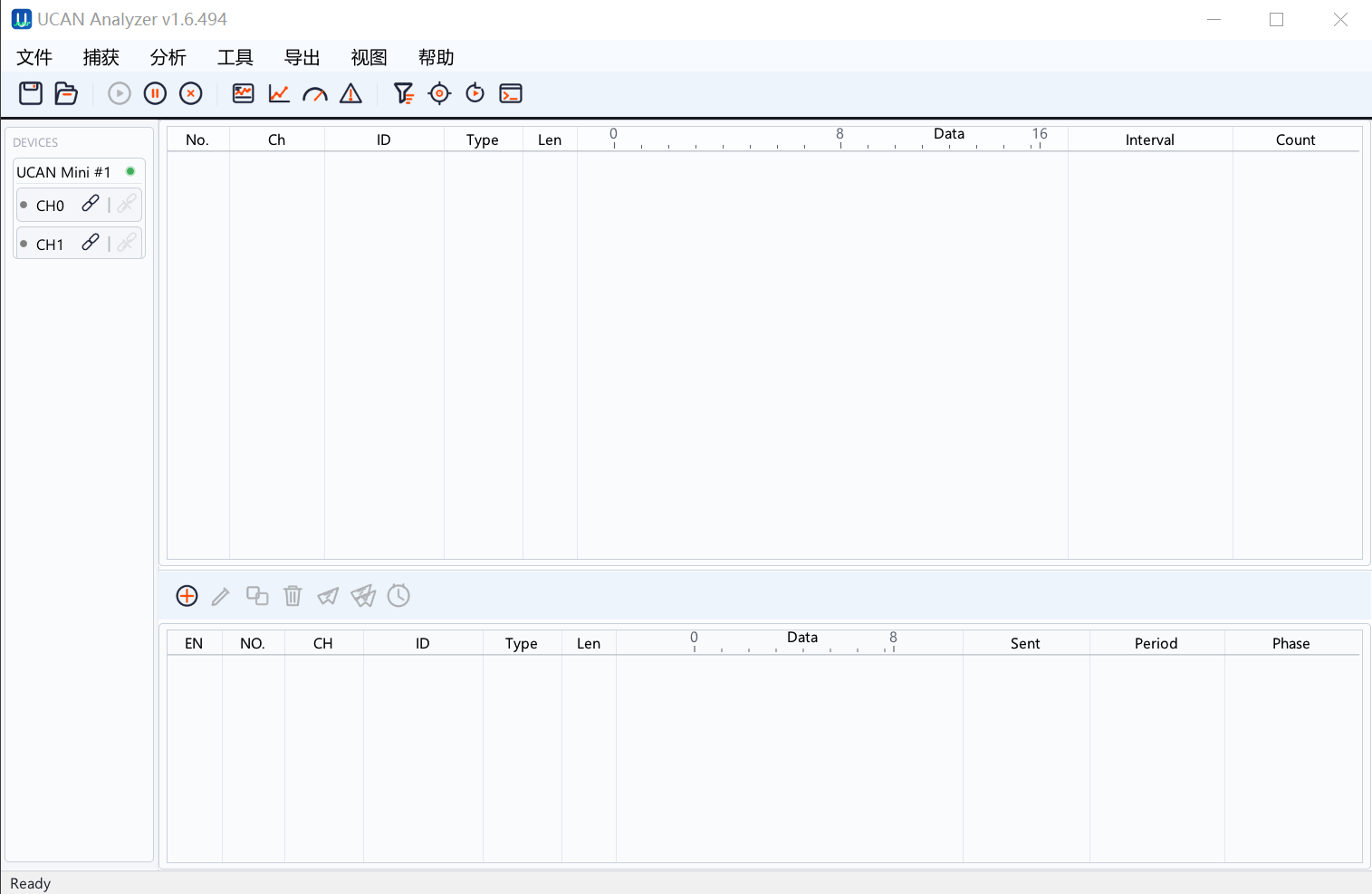
The UCAN-Analyzer main interface includes a menu bar, toolbar, device and channel area, frame views, and analysis tool windows. Common entries are:

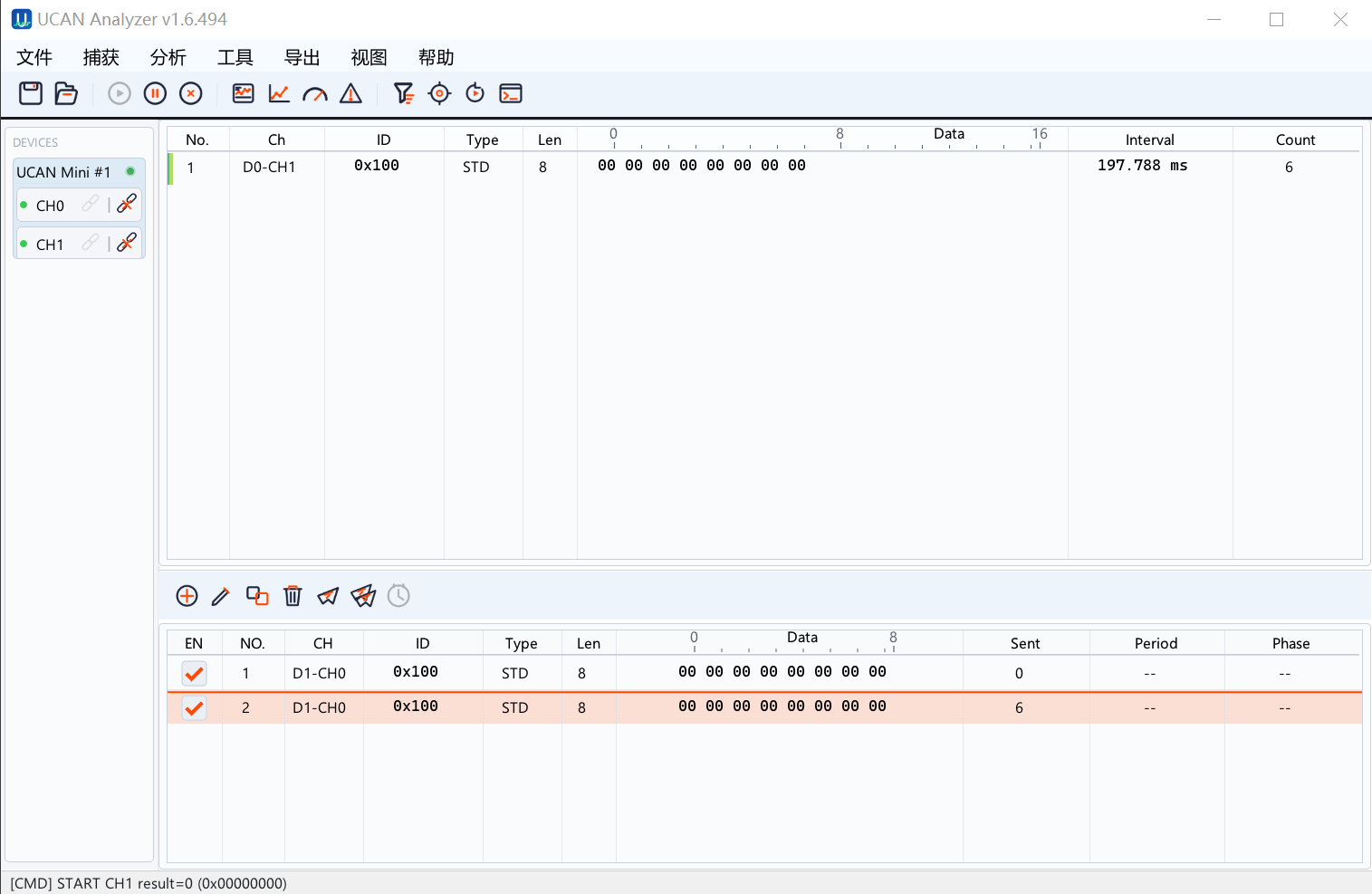
UCAN-Analyzer main window

Area Purpose
File Open and save projects, manage recent projects
Capture Pause, resume, and clear current frame data
Analysis Open trace, data analysis, bus load, error, signal, and protocol helper windows
Tools Open filter, trigger, replay, and Lua console windows
Import / Export Import frame data, export CSV, ASC, BLF, and save or load transmit presets
View Adjust theme, language, UI scale, and table density
Help Check updates, switch language, and view software information

3.1 Toolbar Icon Buttons

Icon Button Function
Save Save the current project configuration, window state, and common debug parameters
Open Open an existing project file to restore a debugging workspace
Start / Pause Control host-side frame display refresh without changing device bus configuration
Clear Clear frame records from the current receive and trace views
Trace Open the live trace window and inspect CAN / CAN FD frames in time order
Analysis Open the data-analysis window and extract values from selected frame fields
Bus Load Open the load statistics window and monitor current, average, and peak load
Alerts Open the errors and alerts window for channel state and error counters
Filter Open filter configuration to reduce host-side data pressure
Trigger Open trigger rules to record, notify, or send frames when conditions match
Replay Open replay tools and reproduce historical frame sequences
Lua Console Open the script console for batch validation and automated debugging

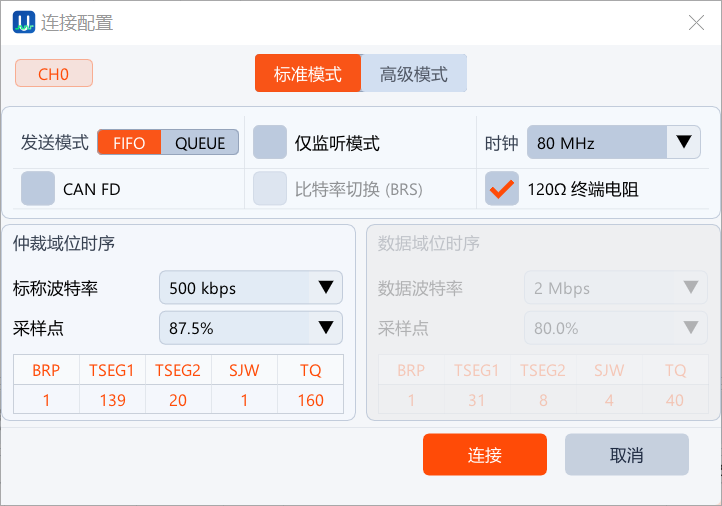
4. Connecting UCAN-Mini

  1. Connect UCAN-Mini through USB.
  2. Start UCAN-Analyzer.
  3. Refresh the device list in the device area.
  4. Select the device and channel, then click connect.
  5. After connection succeeds, the status bar shows the online state, and the configuration, receive, transmit, and analysis windows use the current device data.

UCAN-Analyzer connection configuration

If connection fails, first check the USB cable, device power, system permission, driver occupation, and whether another program is already using UCAN-Mini.

5. CAN / CAN FD Channel Configuration

Channel configuration sets the CAN controller parameters of UCAN-Mini. Common items include:

Item Description
Arbitration bitrate Bitrate used by Classical CAN and the CAN FD arbitration phase
Data bitrate Bitrate used by the CAN FD data phase
Sample point Bit timing sample position, using presets or advanced parameters
Termination Enable or disable according to the field topology
Mode Select normal, listen-only, or loopback-style modes according to the test
Channel start / stop Start the channel after applying configuration; stop it before reconfiguration

Start verification from common project bitrates such as 500 kbit/s, 1 Mbit/s, 2 Mbit/s, or 5 Mbit/s. Adjust sample points and advanced bit timing only when exact field network matching is required.

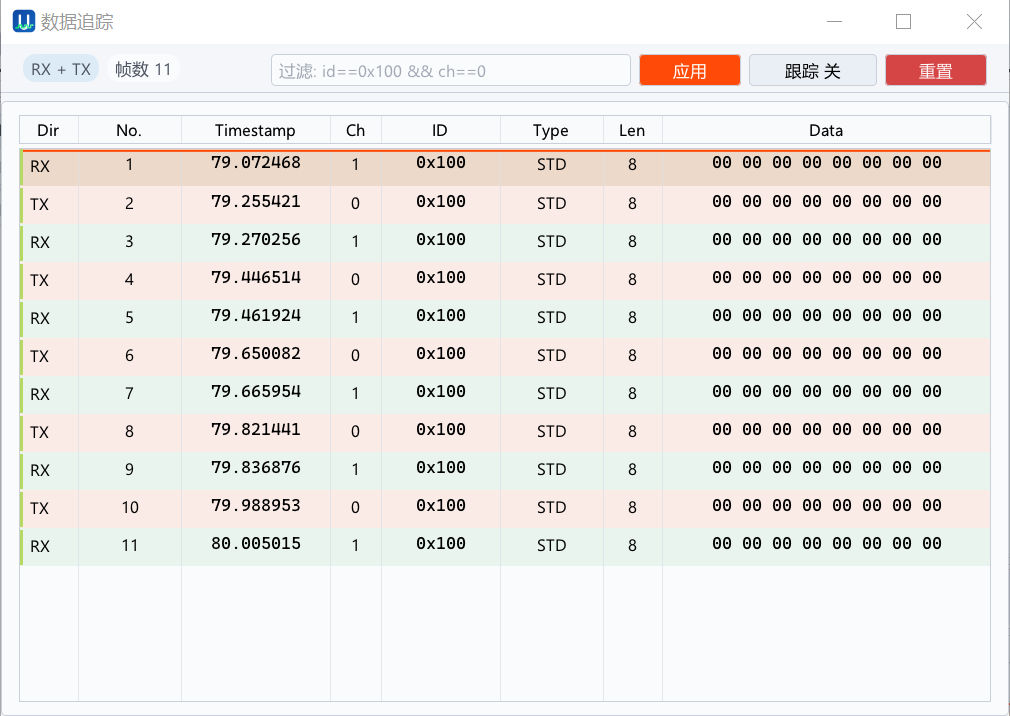
6. Receive, Trace, And Filtering

The receive and trace windows show live CAN / CAN FD frames. The table usually includes timestamp, direction, channel, CAN ID, DLC, data bytes, and decoded information.

The trace window supports expression filtering. Common fields are:

Field Meaning
id CAN ID
ch Channel
dlc DLC or data length
dev Device index

Examples:

text
id==0x100 && ch==0
id==0x18FF50E5 && dlc>7
dev==0 && ch==1

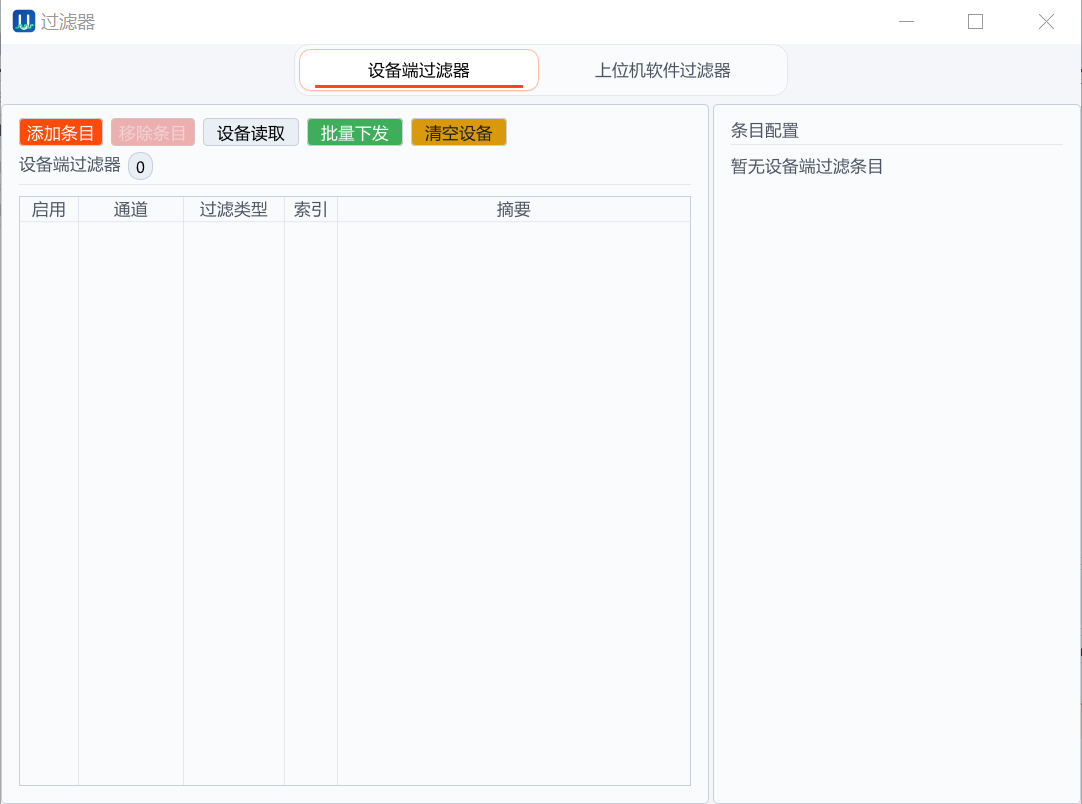
Expression filtering is useful for quickly locating target frames. Device-side filtering is useful for reducing host-side data pressure on high-load networks.

UCAN-Analyzer trace window

UCAN-Analyzer filter window

7. Frame Transmit And Cyclic Transmit

The transmit window is used to create, edit, and run transmit entries. Each entry usually contains channel, CAN ID, frame format, DLC, data bytes, enable state, and cycle parameters.

Common operations:

  1. Add a transmit entry.
  2. Set channel, CAN ID, and data content.
  3. Click send now to verify a single frame.
  4. Enable cyclic transmit and set the period to continuously stimulate the device under test.
  5. Save transmit presets for reuse in later debugging sessions.

Before cyclic transmit, confirm the bus load and target device state to avoid affecting the field network with an excessive transmit rate.

UCAN-Analyzer transmit window

8. DBC, Signals, And Curves

UCAN-Analyzer supports loading DBC files and decoding frame signals. After loading a DBC file, use these windows:

Window Purpose
Signal Viewer View decoded results by message, signal name, physical value, state, and update time
Signal Plot Add selected signals to curves and observe changes over time
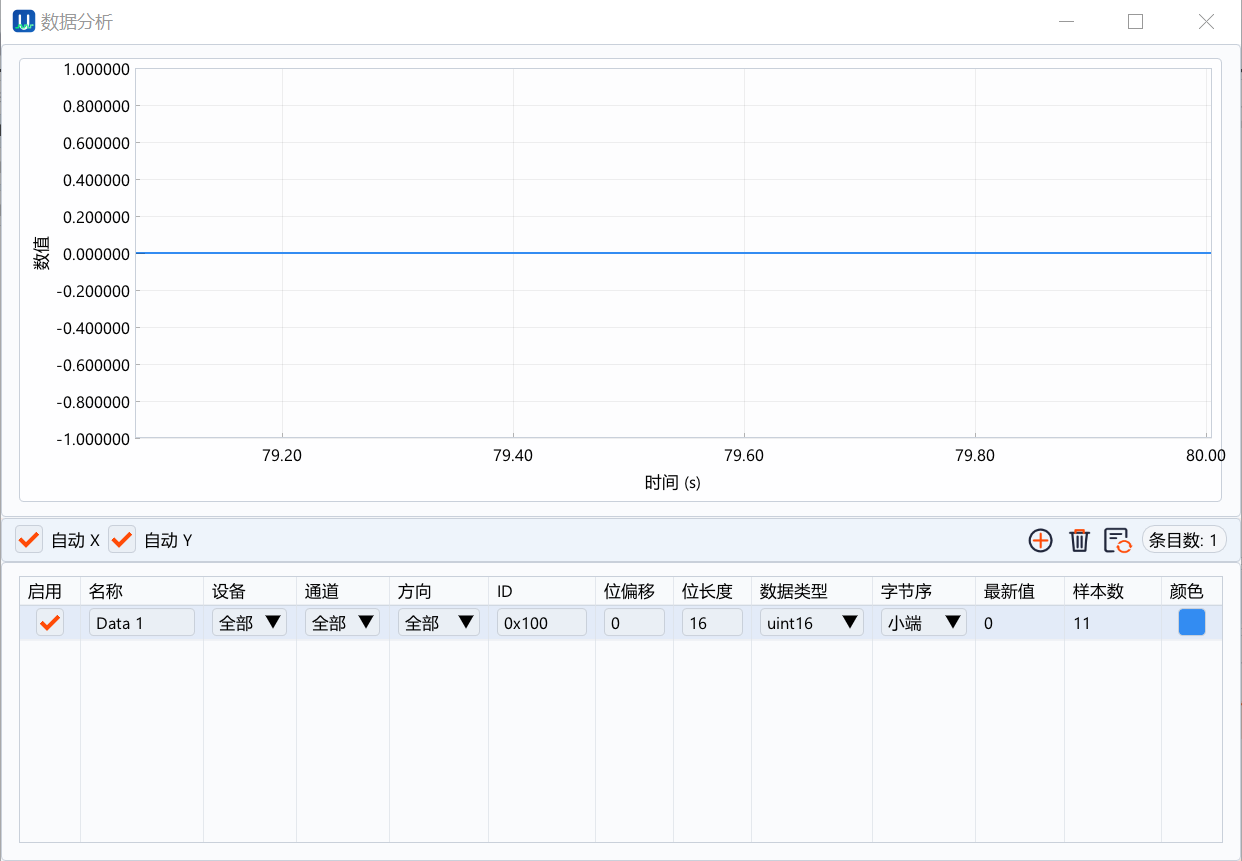
Data Analysis Extract values directly from specified frames, bit offset, length, type, and byte order
Protocol Helper Inspect common protocol fields with assisted views

Without a DBC file, you can still create data entries manually in the Data Analysis window to temporarily observe sensor values, counters, status bits, or control values.

After frames enter the receive channel and frame store, the same data can feed the trace table, DBC signal decoding, curve display, protocol helper, and export flow. To reproduce a test, import frame data or use replay to inspect the same records again.

UCAN-Analyzer data analysis window

9. Bus Load, Errors, And Diagnosis

The bus load window shows current, average, and peak load. It is useful for observing transmit rate, network congestion, and the impact of test scripts.

The error window shows channel error counters, state changes, and warning messages. When an abnormal state appears, check in this order:

  1. Confirm that bitrate and sample point match the field network.
  2. Confirm that termination and cable wiring are correct.
  3. Confirm that CAN_H and CAN_L are not reversed.
  4. Reduce transmit rate or pause cyclic transmit.
  5. Stop and restart the channel.

10. Replay, Import, And Export

The software can export captured frames to common formats and import historical frames for offline viewing or replay.

Feature Description
Export CSV For spreadsheet analysis, scripts, and reports
Export ASC For data exchange with CAN toolchains
Export BLF For binary log storage and compatibility with some analysis tools
Import frame data For offline viewing or replay
Replay Replay frames by time range, speed, and loop policy

Before replaying to a real bus, confirm that the target network allows test frame injection and avoid sending control frames accidentally in production environments.

11. Trigger Rules And Automation

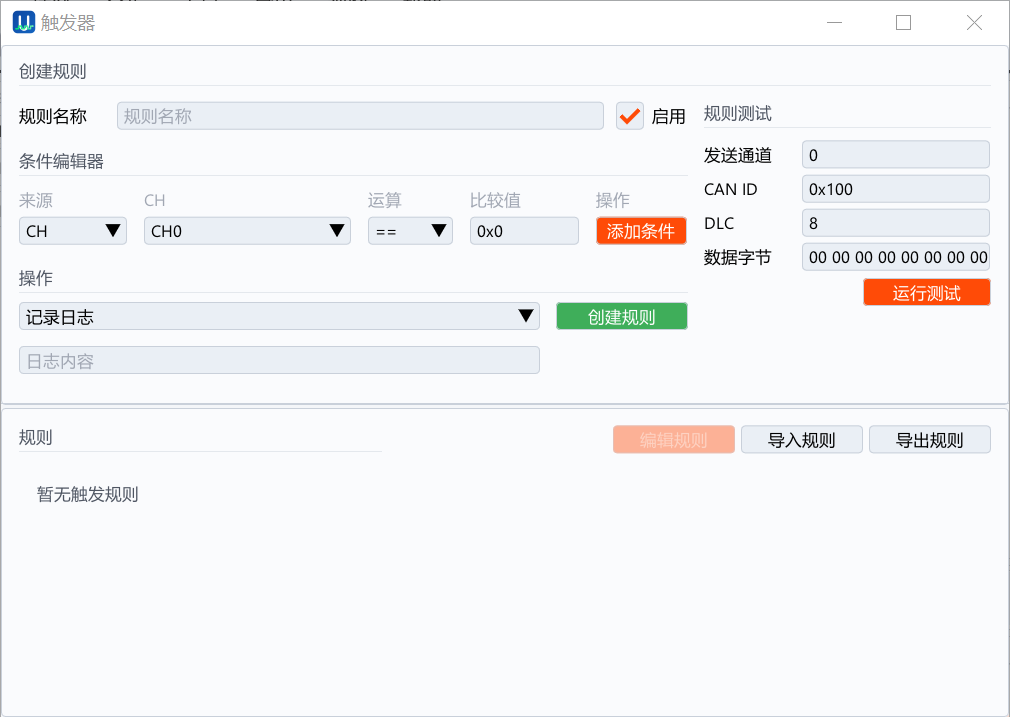
The trigger window can create rules based on channel, CAN ID, DLC, or data fields. When a rule matches, it can record, notify, stop capture, or send preset frames.

UCAN-Analyzer trigger window

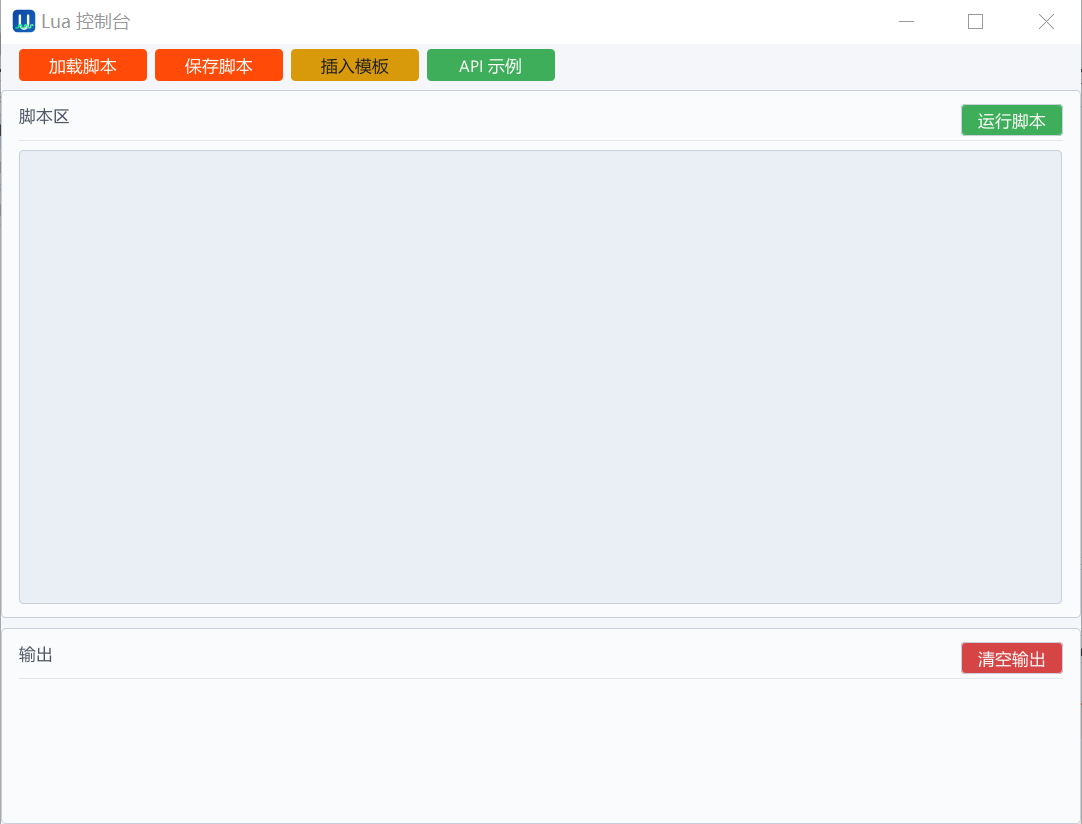
The Lua console is used for more flexible automated debugging and test assistance. Validate rules on offline data or a low-risk network before applying them to field devices.

UCAN-Analyzer Lua console

12. Updates And Maintenance

The update entry in the Help menu is used to check software release packages. Release assets are provided through the official website or the project release page. Before installation, confirm the version, target system, and package type.

If the installer includes UCAN-Mini firmware resources, use the matching maintenance workflow for firmware update. Before update, confirm:

  • The device connection is stable.
  • Do not disconnect USB during update.
  • Use a firmware package that matches the device model.
  • Reconnect the device after update and verify channel state.

For maintenance, follow this order: check the software version, confirm device connection, run the update, reconnect the device, and verify channel state. Before field-device updates, keep the current project file and necessary frame records.

13. FAQ

13.1 Device list is empty

Check USB connection, device power, system permission, and driver binding. On Linux, focus on udev permission. On Windows, check whether the device is occupied by other software.

13.2 No frames are received after starting the channel

Confirm that the field bus has traffic, bitrate and sample point match, termination is correct, and the active filter condition is not too narrow.

13.3 Many error frames or rapidly increasing error counters appear

First check bitrate, cable, termination, grounding, and CAN_H / CAN_L polarity. Use listen-only mode to observe the network when needed.

13.4 DBC signals have no decoded values

Confirm CAN ID type, extended frame flag, byte order, scaling factor, and whether the signal definition matches the actual frame.

13.5 The software update entry cannot retrieve a new version

Check network connectivity, current system time, and proxy settings. You can also manually download the package for the target system from the official website or project release page.

14. Revision History

Version Date Description
v1.7 2026-05-13 Raised the displayed software version line to 1.7
v1.6 2026-05-13 Added UCAN-Analyzer user manual and cleaned up doc release manifest notes